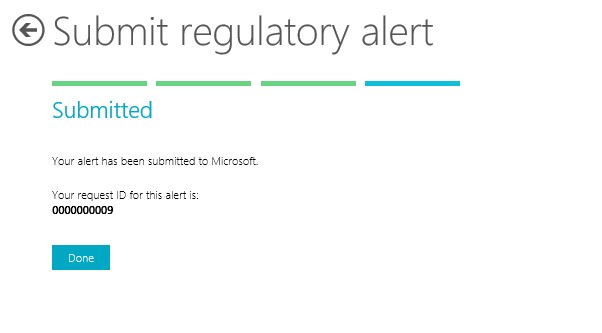
With last month’s update, we put out a preview capability for submitting regulatory alerts – i.e. changes in country legislation that impacts Microsoft supported localized country solution in Cloud Powered Support (CPS). If there is an upcoming regulatory change in your MS supported country that you are aware of you can now flag it to Microsoft by submitting a regulatory alert.
How to enable this beta?
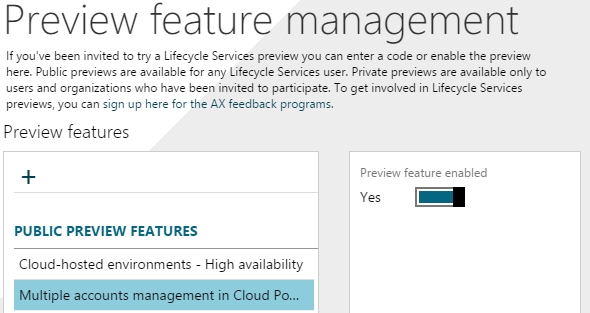
After you login to LCS, go to “Preview Feature Management” tile in LCS and enable “Regulatory alert” in the preview feature list
Once you enable this preview and you go through CPS tile, you will see a new tab called “Regulatory alerts.”
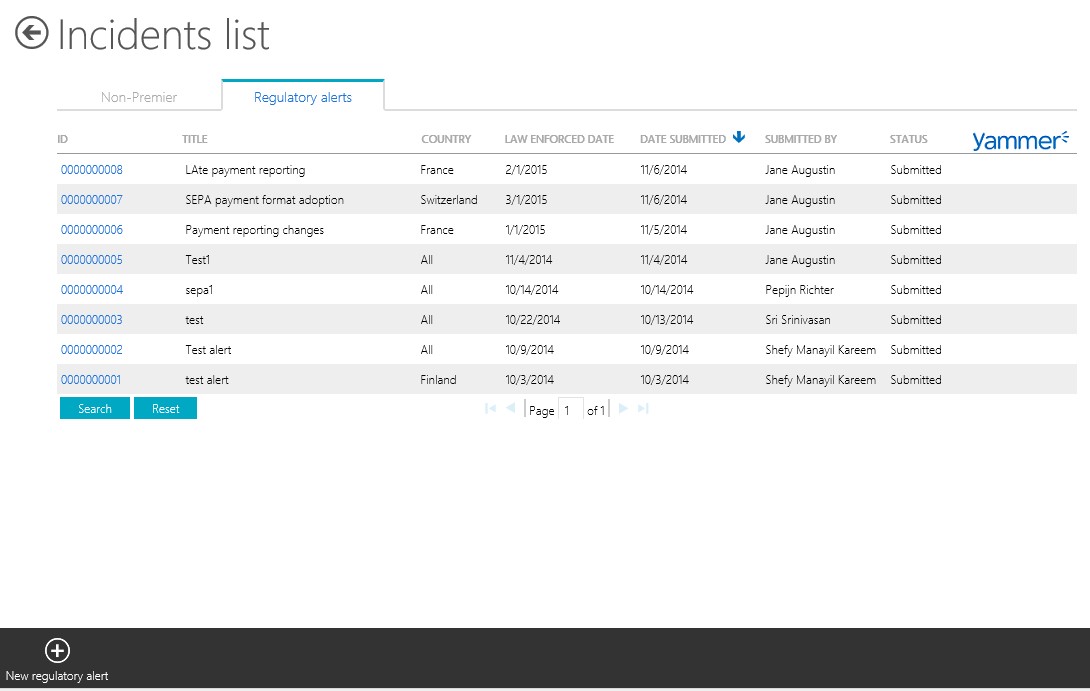
By selecting the new regulatory alert icon (+) – you can enter regulatory alerts through the 4 step submission wizard provided.
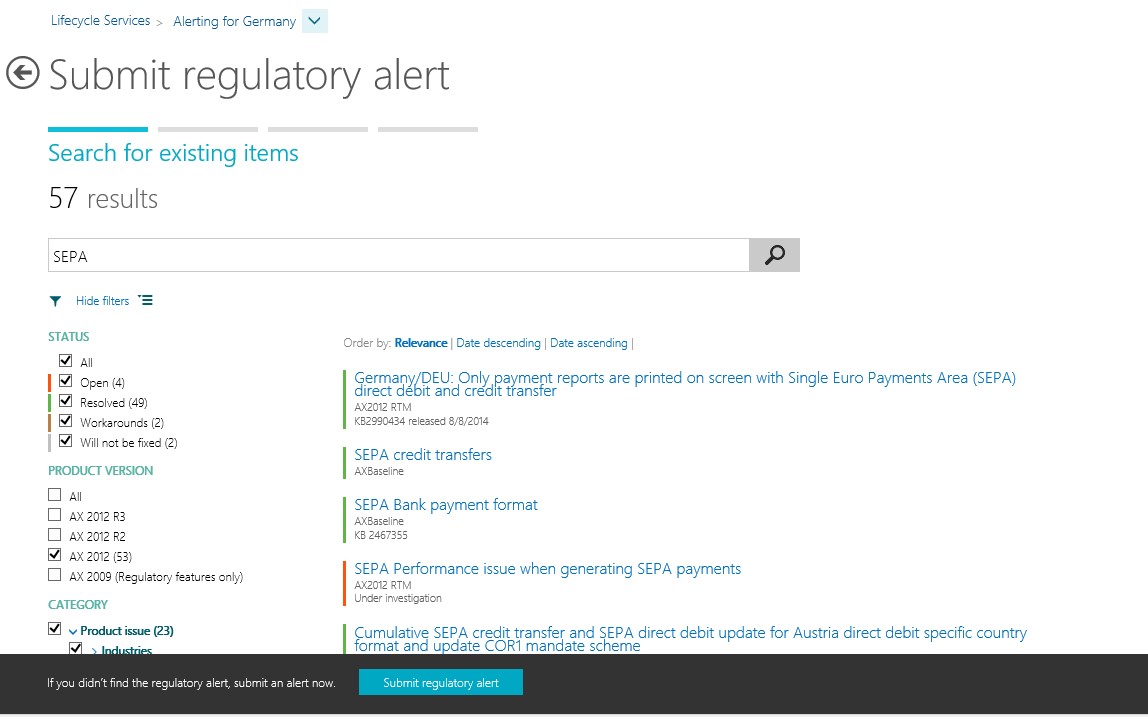
1. Search for an existing item – enter search term for the feature/alert – to see if the feature already exists & has been released:
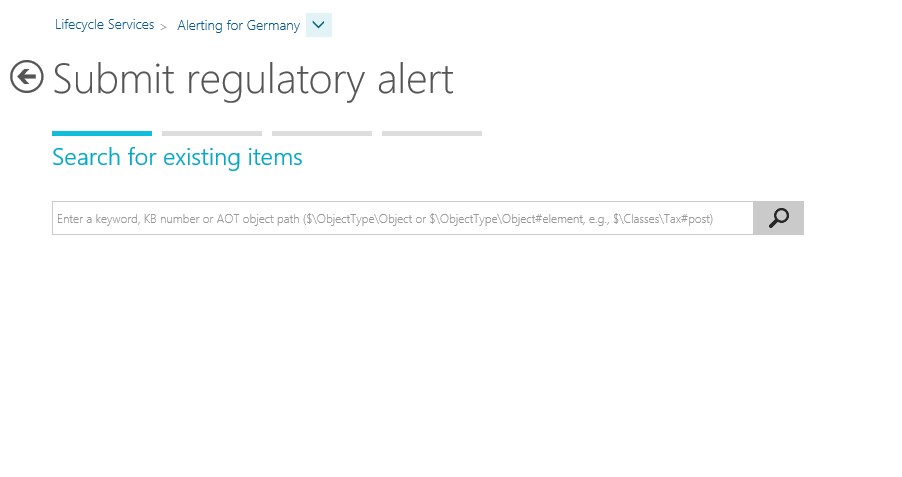
If you don’t find what you are looking for you can proceed with the alert by selecting the ‘Submit regulatory alert’ button:
2. Attach related business processes – You can select business process libraries from the ‘global business process libraries’ drop down box & then drag/drop the related processes to the box on the left. Then select continue.
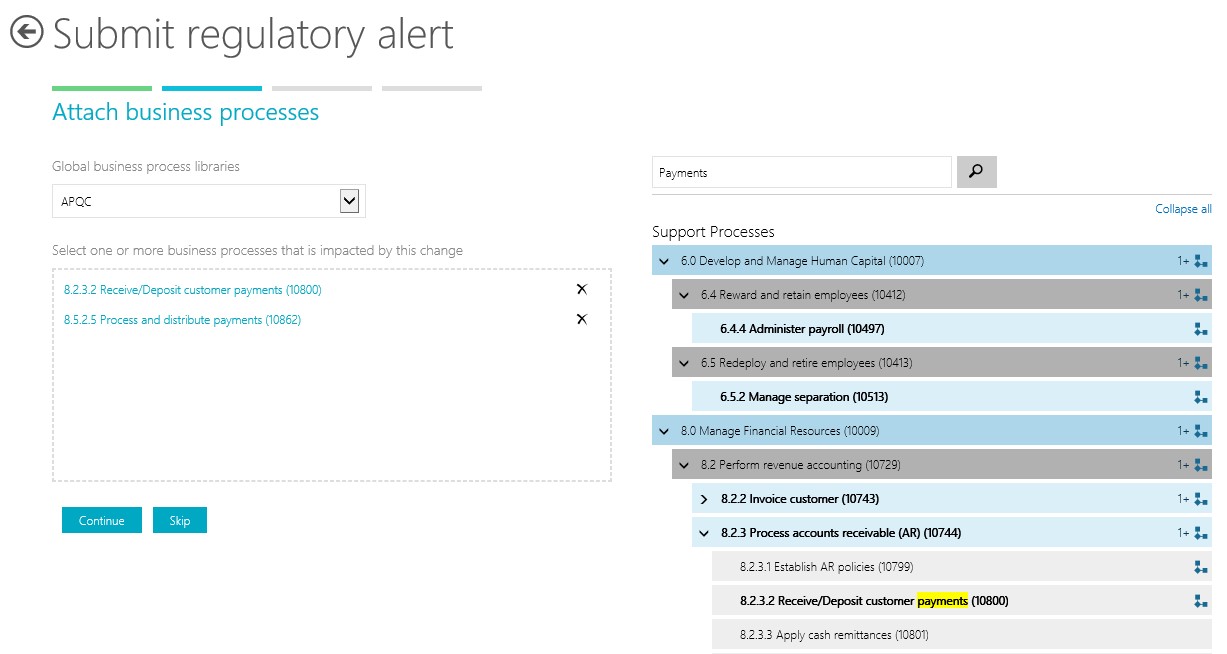
If you want to skip this step as you don’t know what business process will be effected by the change you can select skip button.
3. Describe the regulatory alert – Enter information for the alert in the appropriate fields – All required fields are marked with red asterix (*)
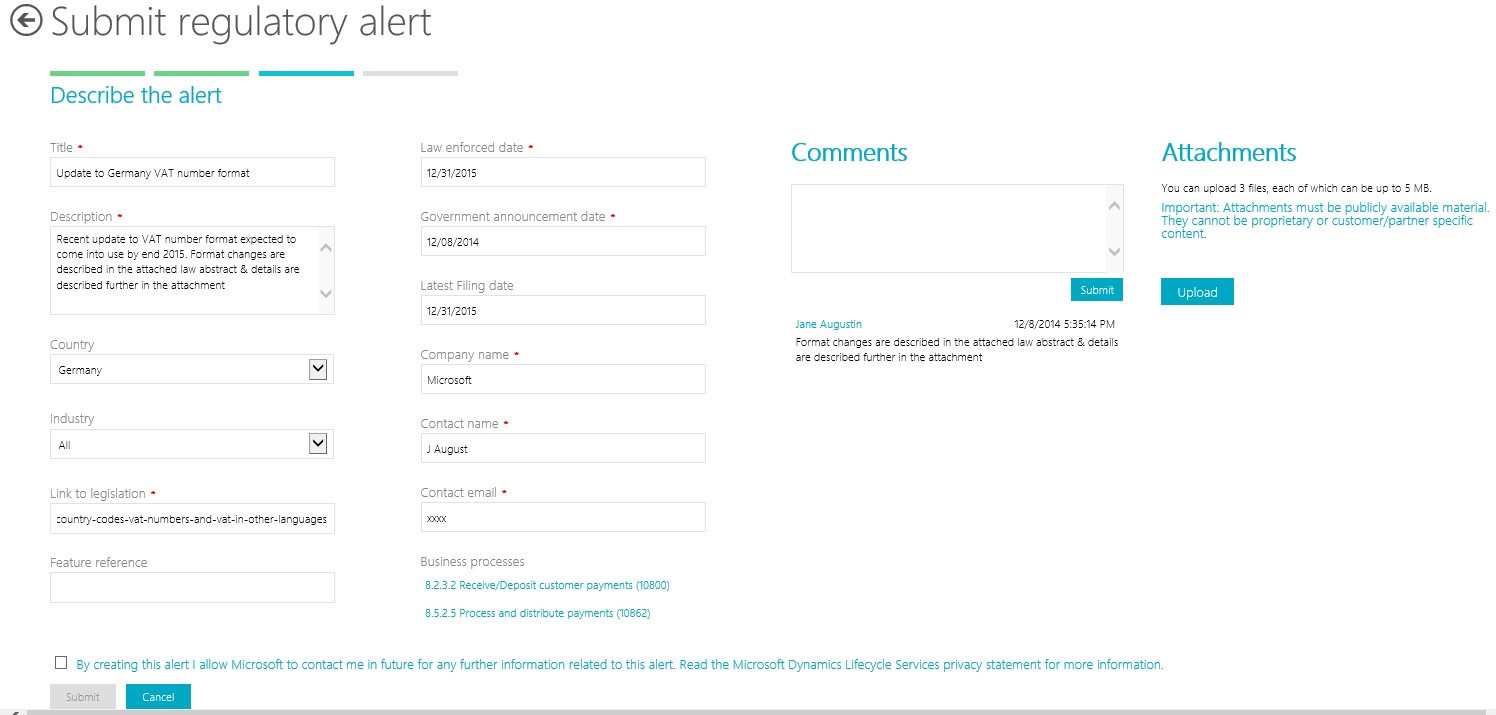
4. Submission confirmation -On completion of all the necessary fields the user needs to provide appropriate consent by ticking the consent checkbox. After you do this you will receive confirmation that your alert has been submitted.