Skip to main content Pricing for individuals For families For single users For premium users For students Learn more Pricing for business For small business For schools For government Pricing for enterprise For enterprise For frontline workers For nonprofits For government Meet Copilot Copilot Chat AI Agents Daily Prompt Guide Plans and pricing Microsoft Teams Word Excel PowerPoint Outlook OneDrive SharePoint Planner See all apps and services Microsoft Office Windows 365 Microsoft Viva Microsoft Edge Microsoft Agent 365 Plans and pricing Learn to use Copilot Copilot learning center Cost savings Accounts and billing FAQ Setup and install Templates Training What's new Microsoft Frontier Program Microsoft 365 Roadmap Microsoft 365 Blog Small Business Resource Center Self-help resources Billing support Community Contact Microsoft Support Self-help resources Admin self-help Support plans Find a partner Contact Sales Community Self-help resources Educator Center Request support Contact Microsoft Support Community Become a partner Partner resources See all support Try for free
1 min read

Show the Style Area Pane in Word 2010


Try Microsoft 365 Copilot

Available on desktop and mobile devices

All Microsoft Word documents contain styles – even if you haven’t applied one. New blank Word documents are based on the Normal template, and text that you type uses the Normal style.

One way of seeing what styles are in your document is to expose the Style Area Pane in the Draft and Outline views.

In Word 2010, go to the File tab, click Options, and click Advanced. Under Display, set the width of the Style area pane width in Draft and Outline views to 1 inch or so.
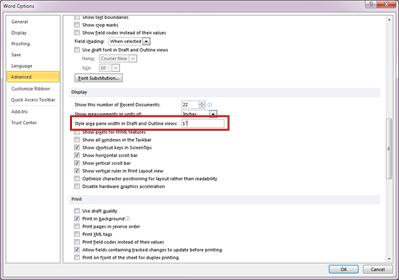
Word 2010 Options Menu

Click OK. Now when you go to Draft or Outline view, you’ll see the style for each paragraph shown in the column to the left of your text.

To remove the Style area pane, grab the vertical black line with your cursor and drag it to the left.

If all the paragraphs in your document show as the Normal style, your Word doc and your work flow may not be all it can be. Watch this video for a quick overview on how to apply styles in Word 2010.

— Ron O.