- For CRM 2015 org:
- For CRM 2013 org:
- For CRM 2011 org:
- Microsoft Dynamics CRM Notification Requirements
For CRM 2015 org:
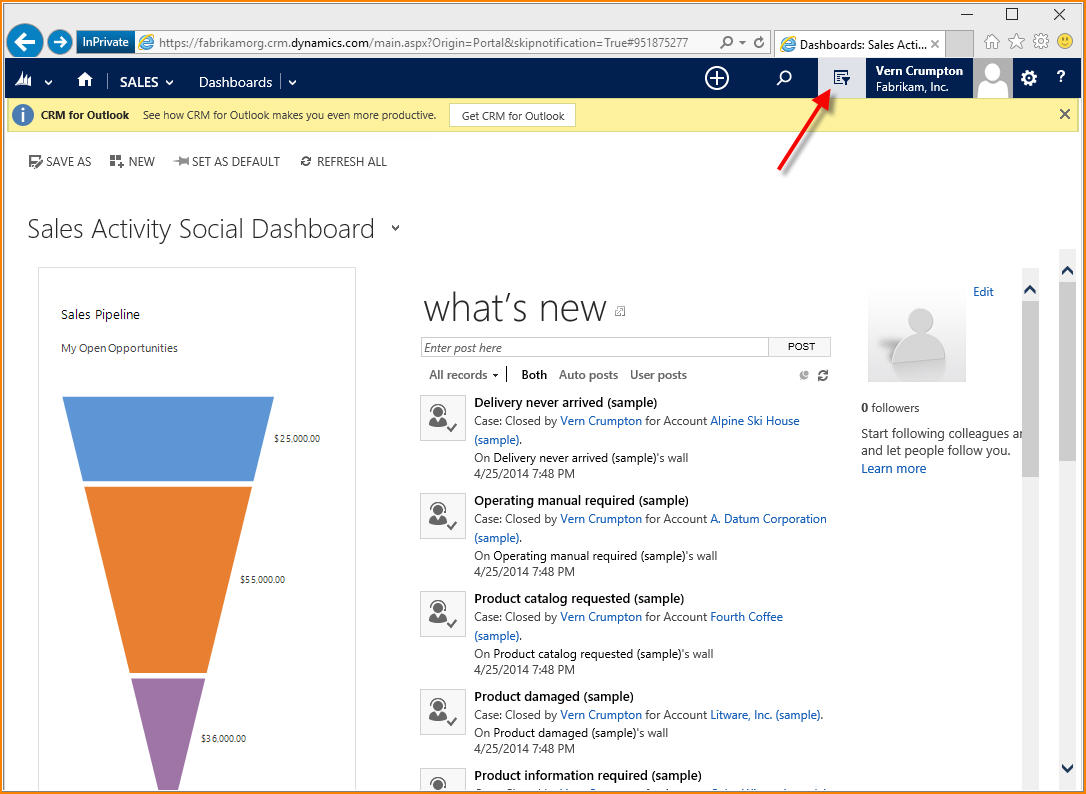
Step 1: Login to your CRM organization (as shown below) and click on the Advanced Find located on the top toolbar as shown below.
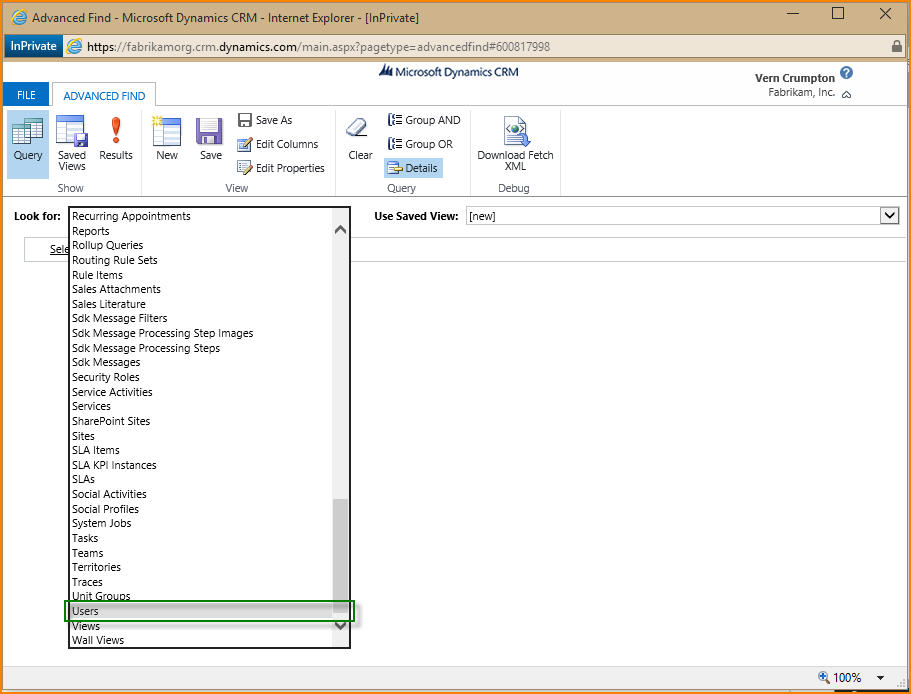
Step 2: On the Advanced Find page, click the Look for: drop down as shown below, scroll down and select Users
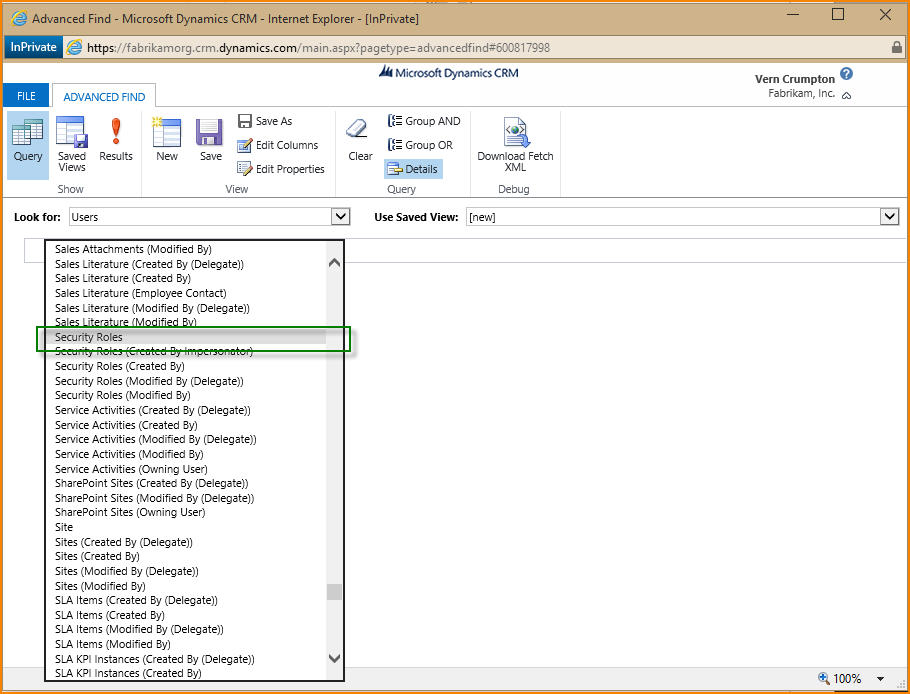
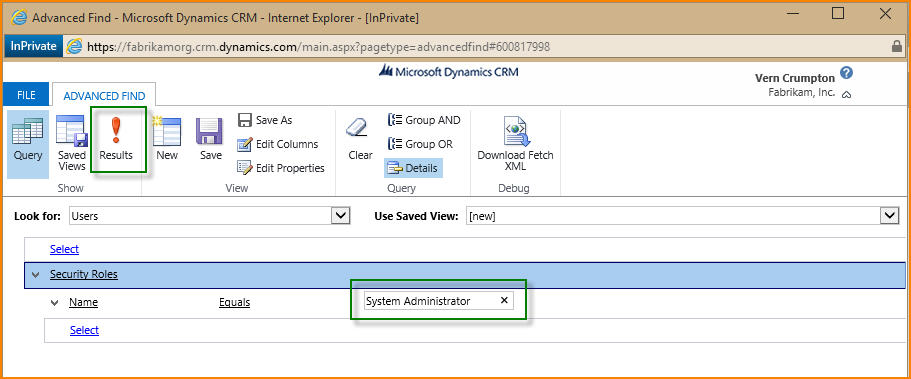
Step 3: Select Security Roles from the list as what to search for. (As shown below)
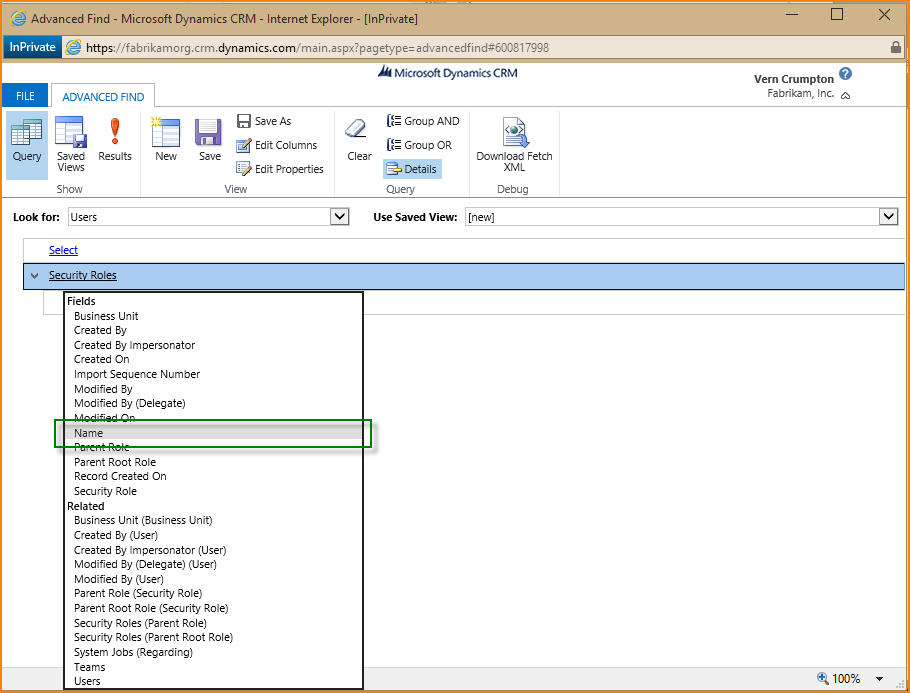
Step 4: After selecting Security Roles, under Fields select Name from the drop down
Step 5: Next, you will be asked to provide a search string in the enter text location, enter the string System Administrator and click the ‘Results’ button on the Advanced Find toolbar.
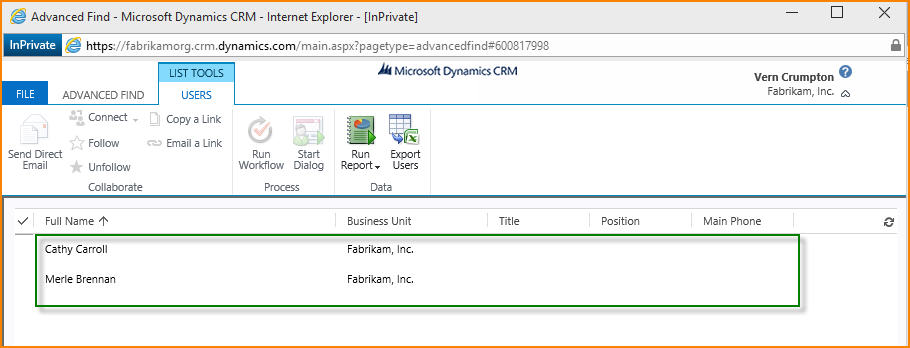
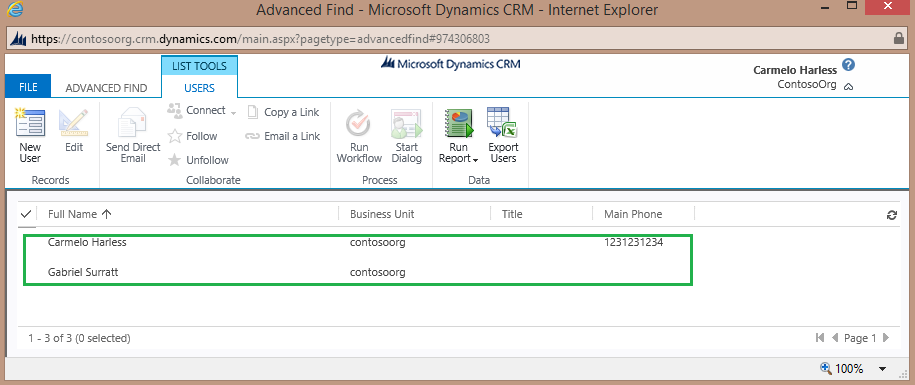
Step 6: After clicking Results, System Administrator information will be displayed in a separate window as shown below:
For CRM 2013 org:
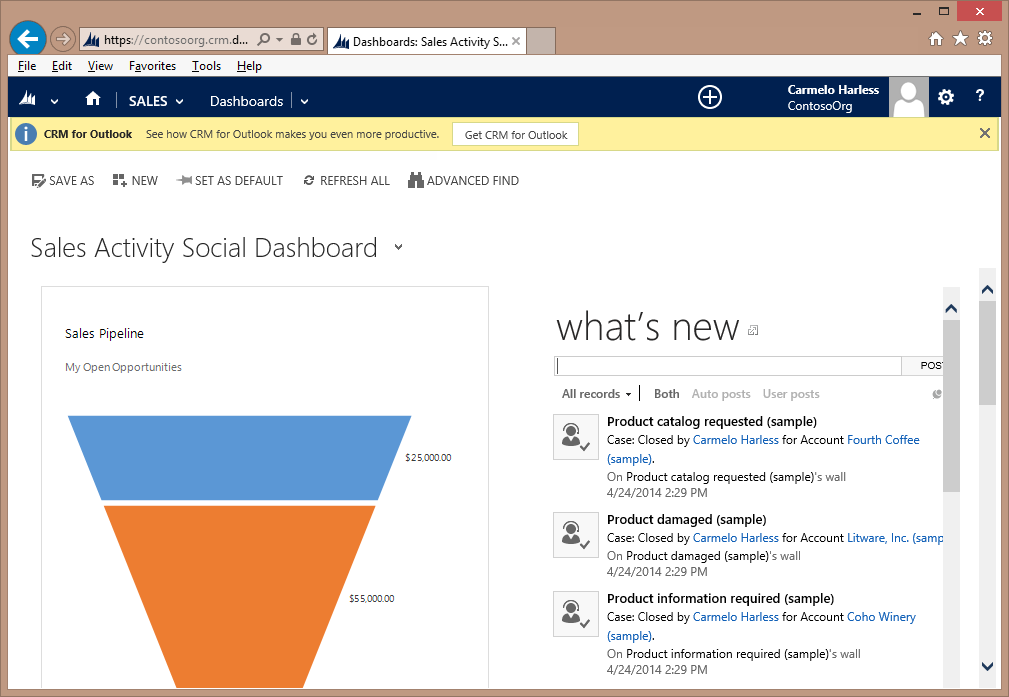
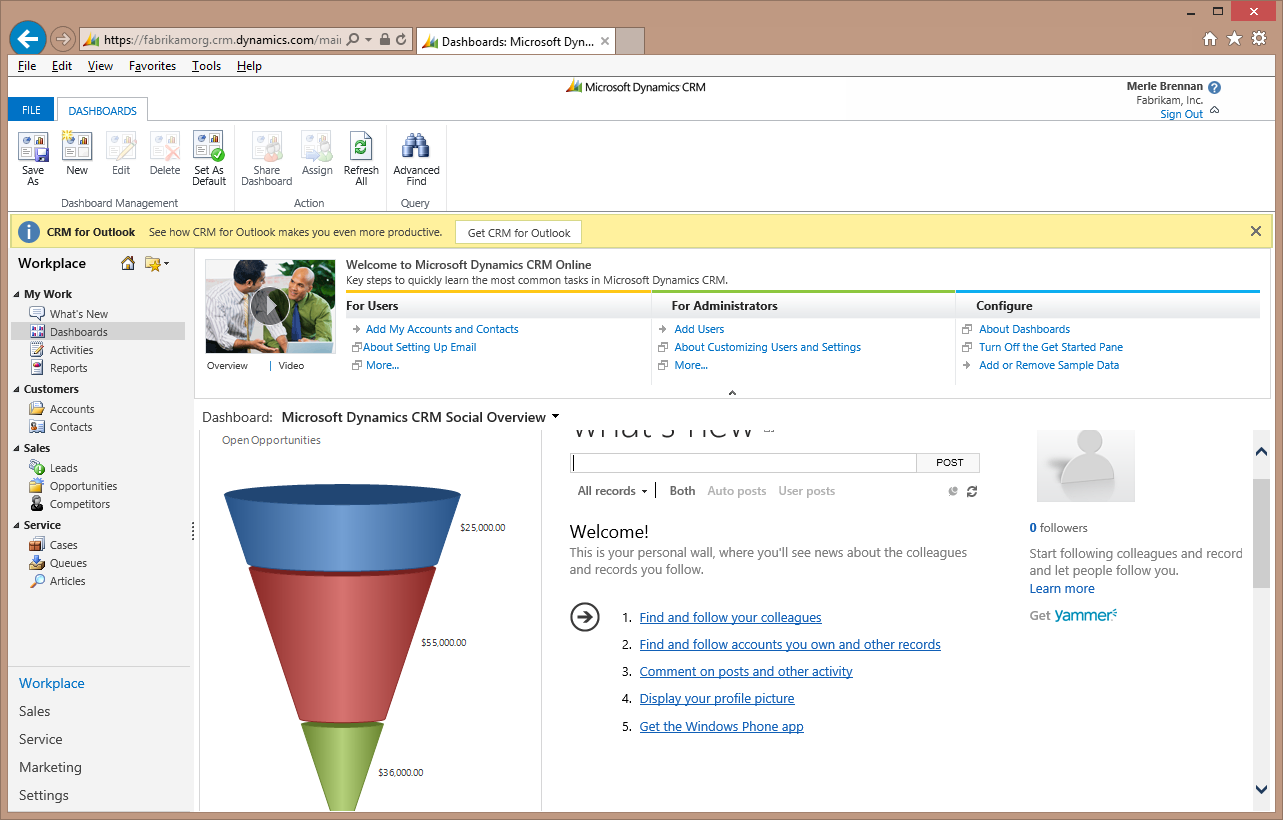
Step 1: Login to your CRM organization (as shown below)
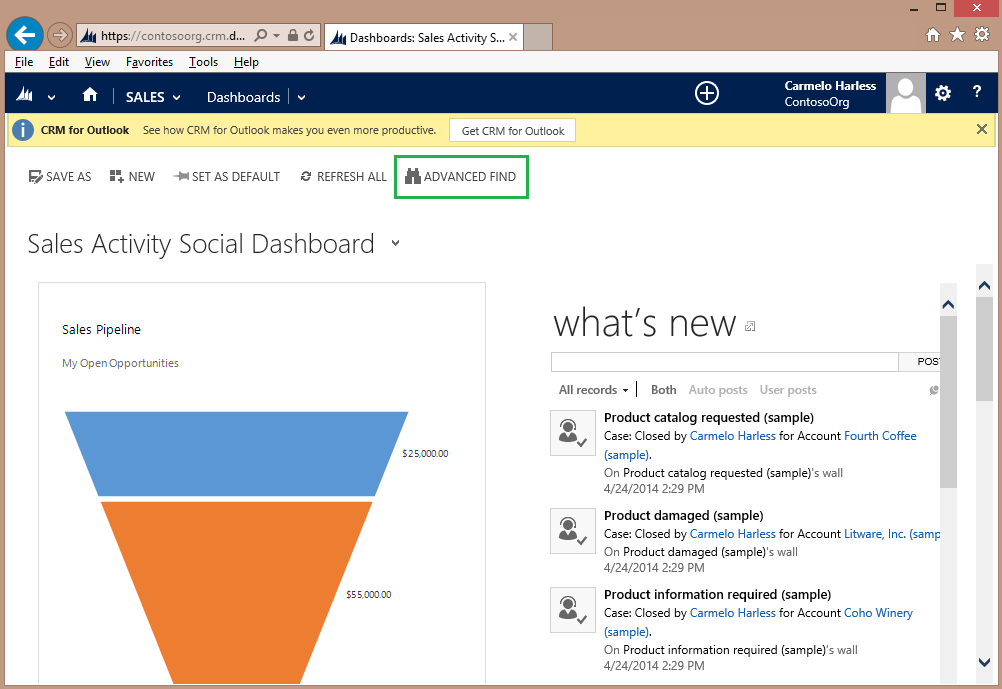
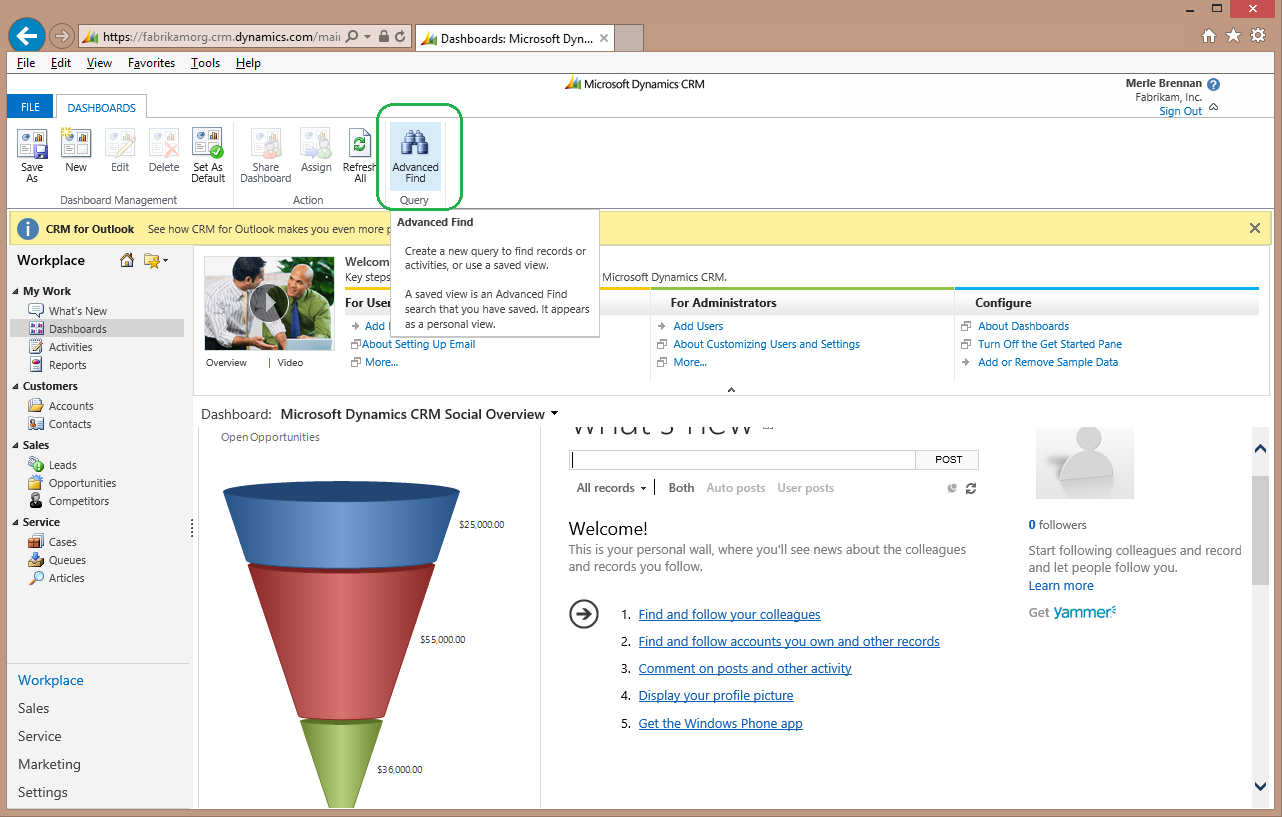
Step 2: Click on Advanced Find on the Dashboards toolbar as shown below:
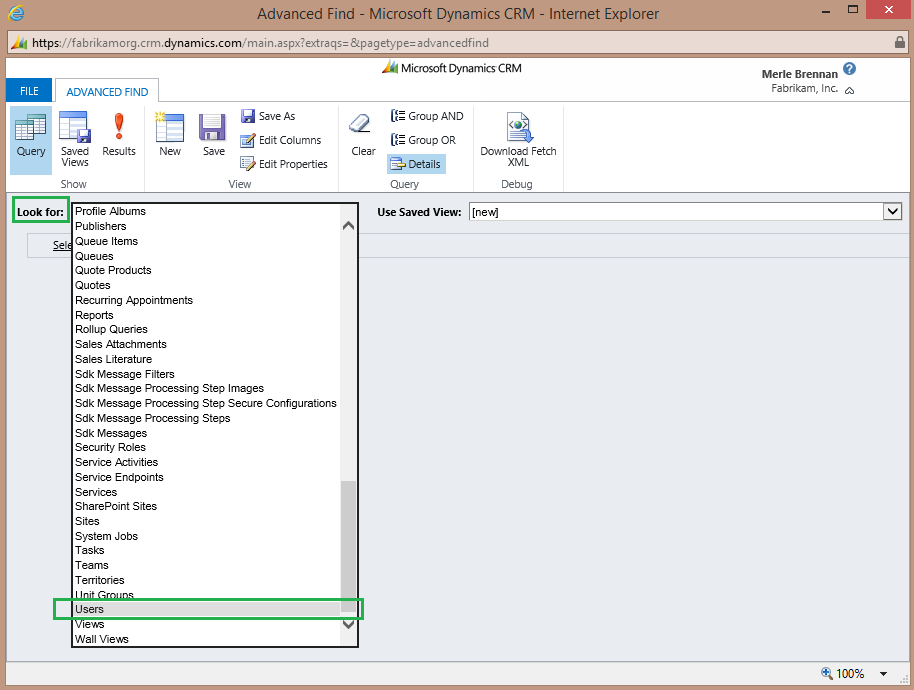
Step 3: On the Advanced Find page, click the Look for: drop down as shown below, scroll down and select Users
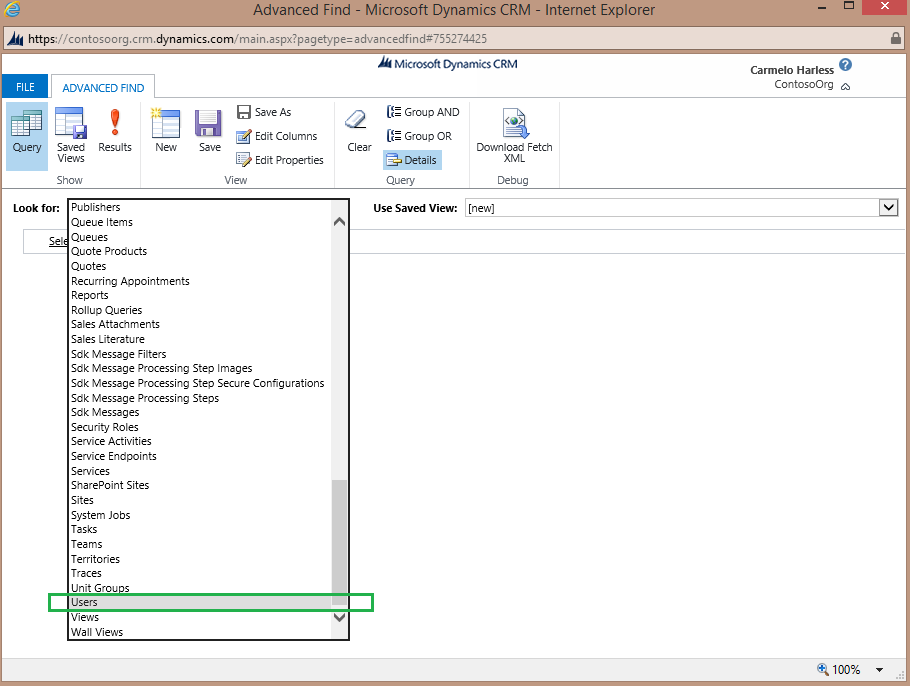
Step 4: Select Security Roles from the list as what to search for. (As shown below)
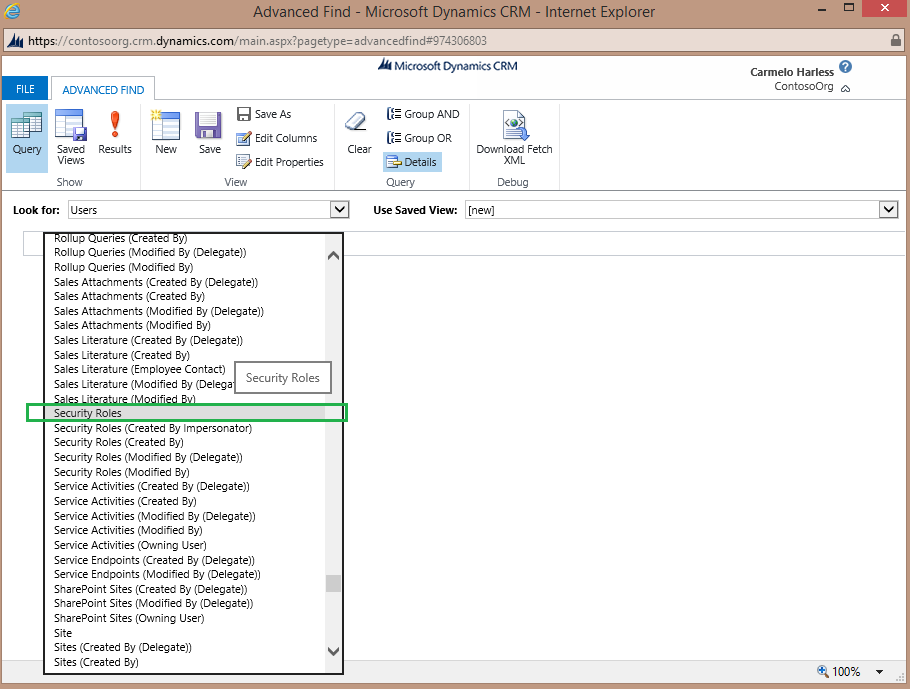
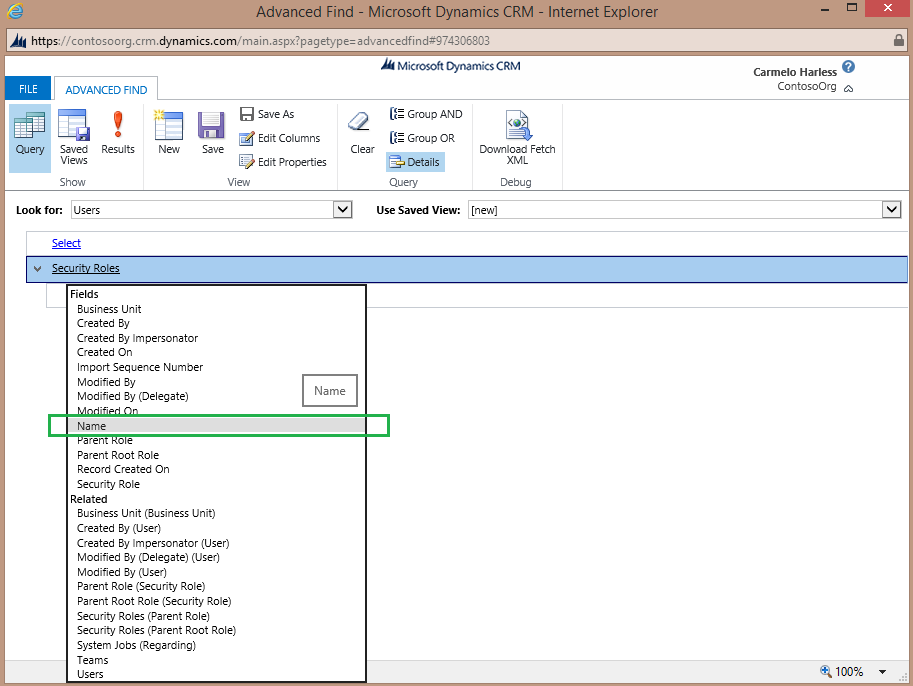
Step 5: After selecting Security Roles, under Fields select Name from the drop down
Step 6: Next, you will be asked to provide a search string in the enter text location, enter the string System Administrator and click the ‘Results’ button on the Advanced Find toolbar.
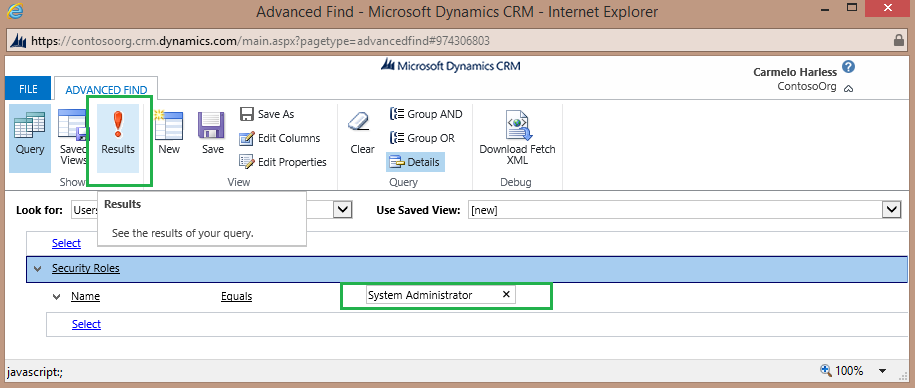
Step 7: After clicking Results, System Administrator information will be displayed in a separate window as shown below:
For CRM 2011 org:
Step 1: Login to your CRM organization (as shown below)
Step 2: Click on Advanced Find on the Dashboards toolbar as shown below:
Step 3: On the Advanced Find page, click the Look for: drop down as shown below and select Users
Step 4: Select Security Roles from the list as what to search for. (As shown below)
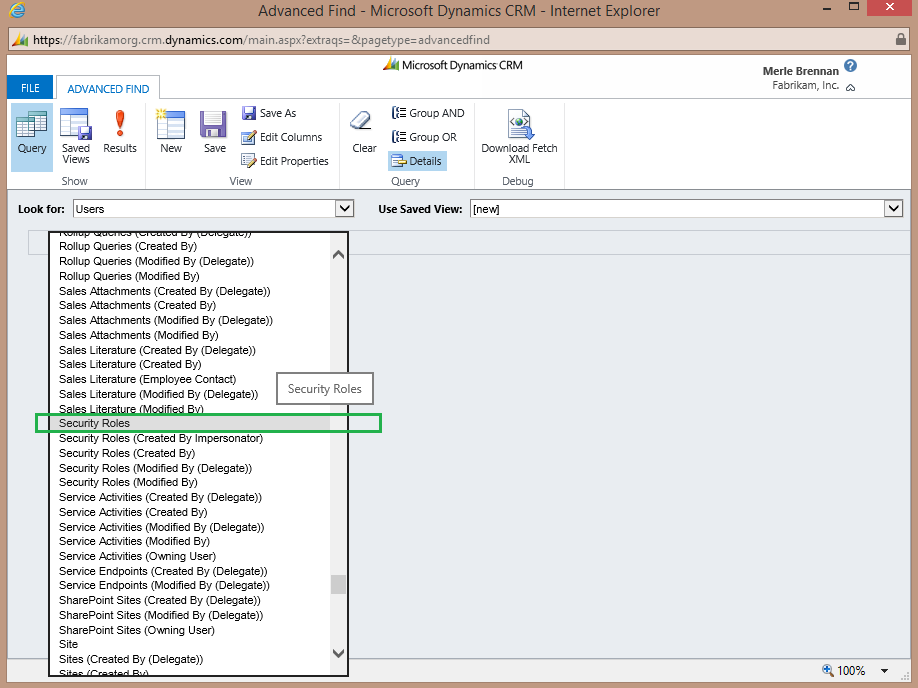
Step 5: After selecting Security Roles, under Fields select Name from the drop down
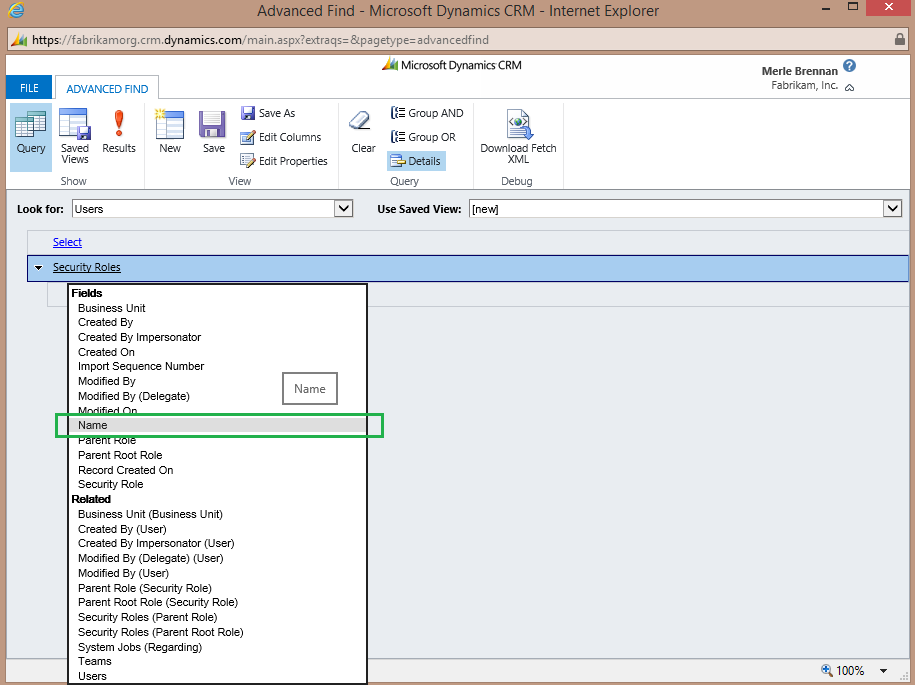
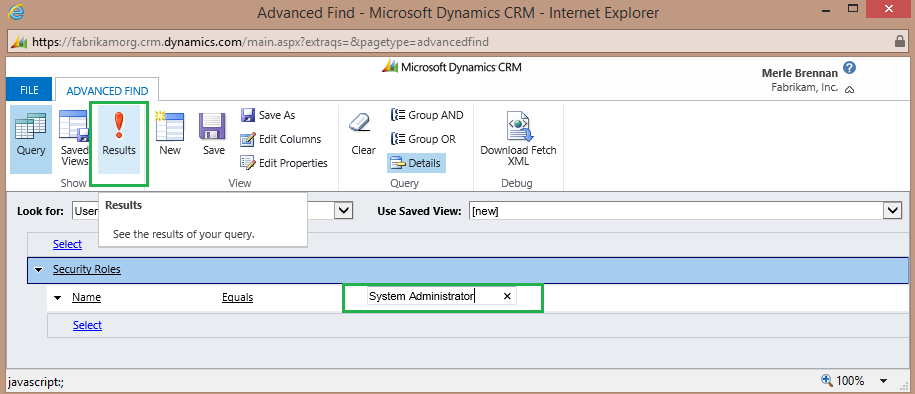
Step 6: Next, you will be asked to provide a search string in the enter text location, enter the string System Administrator and click the ‘Results’ button on the Advanced Find toolbar.
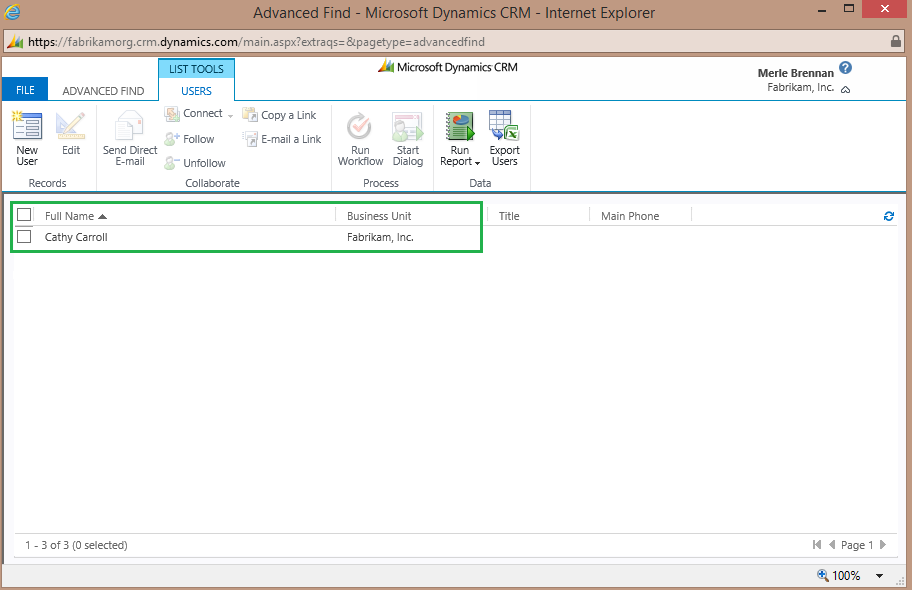
Step 7: After clicking Results, System Administrator information will be displayed in a separate window as shown below:
Microsoft Dynamics CRM Notification Requirements
Microsoft Dynamics CRM communications will be sent only to the users who are assigned the ‘system administrator’ role within their organization. For any changes that occur to your organization, communication will be sent from the email address: crmoln@microsoft.com.