If you want page numbers that show the chapter number and the page number, such as 1-1 or 1:1, you can use the a heading style and the Page Number Format dialog box.
If you want a header or footer that looks like this:

you can use sections and field codes.
Let’s take a look at each option.
Use chapter numbers with page numbers
First, apply a heading style, such as Heading 1, to each chapter heading in your document (use this style only for your chapter headings).
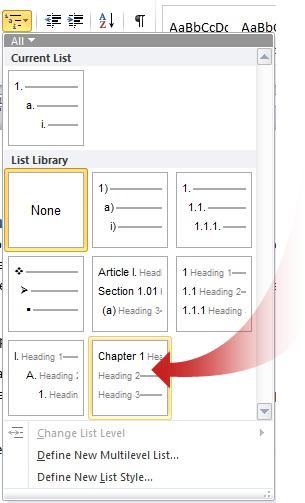
On the Home tab, in the Paragraph group, click the Multilevel List button, and then click the option that includes Chapter.
Then, insert a page number.
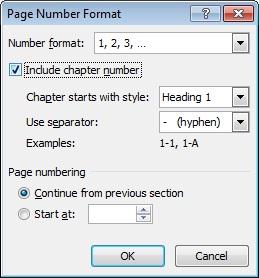
On the Header and Footer Tools Design tab, in the Header & Footer group, click Page Number, and then click Format Page Numbers.
Select the Include chapter number check box.
In the Chapter starts with style list, click the name of the style that you applied to your chapter headings.
Choose a different separator, if you want, and then click OK.
Use Chapter n and the page number in the header or footer
First, insert a section break before each chapter.
In the header or footer, type Chapter and a space.
On the Insert tab, in the Text group, click Quick Parts, and then click Field.
In the list of fields, click Section, and then click OK.
Press the TAB key to move the cursor to where you want to put the page number.
Now, you’re going to insert the Page field. On the Insert tab, in the Text group, click Quick Parts, click Field, click Page in the list of fields, and then click.
— Joannie Stangeland