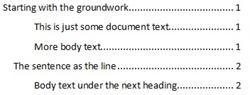
 How do you add text to a table of contents? Not a heading, but just plain text?
I was going to write about different commands on the References tab, but then that Add Text button was staring right at me–glaring, in fact.
At the risk of opening up the proverbial can of worms, I’m going to admit that I’ve never been able to get this to work for me–because when I click the button and click a level, my text is reformatted to that level, even though I want the text to stay the same in my document but show up in my table of contents. Maybe I’m misinterpreting it.
So let’s just forget the button for a minute. Here’s a way to add just plain text to your table of contents.
The trick: It isn’t just plain text. You’re going to create a style that’s just for this use. It can look exactly the same as all your text. And it’s easy to do.
Select some of the text that you want to add.
On the Home tab, in the Styles group, click the More button
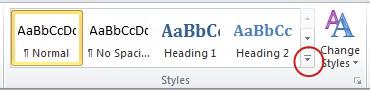
and then click Save Selection as a New Quick Style.
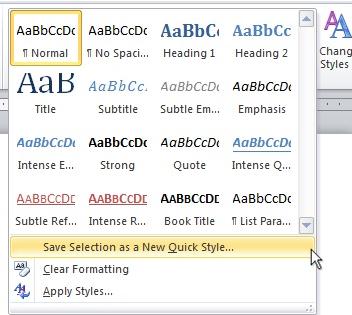
Give your new style a name–for example, TOCBody.
Now, on the References tab, click Table of Contents, and then click Insert Table of Contents.
Click Options.
In the dialog box that opens, scroll down until you see the new style that you just created, and then assign it a level.
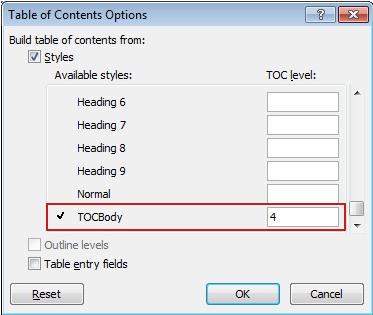
For example, if your table of contents will show level 1, level 2, and level 3 headings, type 4 for the level of your new style.
Click OK.
Now, select the text that you want to appear in the table of contents, and then in the Styles group, click your style.
If you’ve already inserted a table of contents, you can click Yes to update your table of contents. Or you can click Insert Table of Contents to insert a new one.
For more information about tables of contents, see Create a table of contents and Word of the week: TOC (changing levels and formatting). For a really in-depth nuts-and-bolts look, see How to create a table of contents by marking text in Word.
— Joannie Stangeland