[Author’s note: Daniel Ferry, an Excel MVP, recently updated the Excel 2010 gradebook template. Now you can easily print all student reports with the click of one button. This new button required VBA script, which creates macros in the file. You’ll want to click Enable Macros when prompted during download. These macros have been tested and validated by Microsoft.]
Earlier in the year I worked with Beth Melton, an Excel Microsoft Most Valuable Professional (MVP), to create a super easy and visual gradebook template in Excel 2010. It’s built for teachers with little to no Microsoft Excel experience. In fact, all of the grade calculation formulas are taken care of for you. We built the template in Excel 2010, because of all the new 2010 data visualization features. It even includes a printable student progress report!
Download the template
- Open Excel 2010.
- Click the File tab.
- Click New.
- In the Office.com Templates search box, type gradebook and then click the search (magnifying glass) button.
- Click the Gradebook with printable student progress report template.
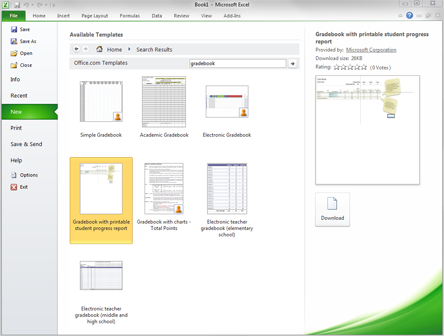
- In the information pane, click Download. The template will open as a new Excel spreadsheet.
- Click File and then click Save As to save a local copy of this file.
Note: You can also download this template from www.office.com/templates.
Delete placeholder data
After downloading the template, you’ll see three rows of student names, three columns with assignment names and grades, and some helpful tips in light brown callouts. We added the placeholder data to the template to help you see what it should look like. For example, in the screenshot below notice how the letter grade and percentage is calculated based on the total points possible and the individual student’s total points earned.
To customize the template, you’ll need to:
- Read and then delete the light brown callouts.
- Fill in your own data, such as the name of your class, your name, and the names of your students. To add more names to the spreadsheet, you’ll want to insert more rows into the Excel table (instructions below).
- Fill in assignment information, such as the assignment name, due date, and total possible points. To add more assignments to the spreadsheet, you’ll want to insert more columns into the Excel table (instructions below).
Important: Each assignment has a matching entry in the Total Possible Points table.You must keep data in at least one student name row, one assignment name column, and one Total Possible Points cell populated with data to preserve existing formulas.
Add student name rows to the template
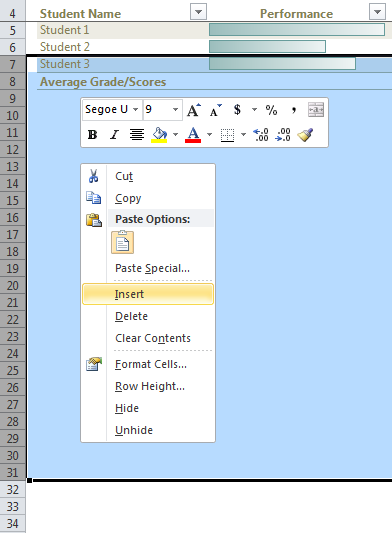
- Click the row number next to the last student name in the Excel table.
- Drag the cursor down to the row number you want to insert. For example, if you have 26 students in your class drag the cursor from row 7 to row 30.
- Right-click the highlighted rows and select Insert.
Add assignment columns to the template
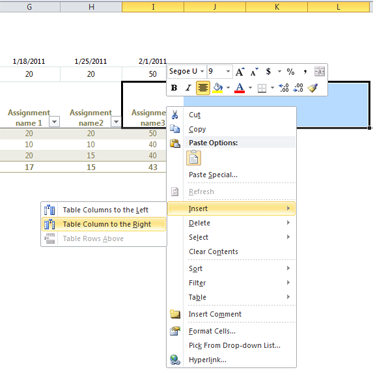
- Click the last assignment name in the Excel table to select that cell and then drag your cursor to the right and highlight the columns you want to add. For example, to add 3 new columns to the table, click Assignment name3 to select that cell. Then drag and drop your cursor to column L.
- Right-click the highlighted rows, click Insert and select Table Columns to the Right.
Manually calculate a student’s grade percentage
To manually calculate a student’s grade percentage, do the following:
- In the row for the student, select cell under the percentage (%) column. The formula will appear as: =IFERROR([@[Total Points Earned]]/TotalPoints,””)
- Replace TotalPoints in the formula with the new numeric entry and press Enter.
- If this is the first time a manual change has been made to the percentage entries in the workbook, click Undo to reverse the automatic calculated column. The Undo step is not required for subsequent changes.
Note: All students who have manual grade percentage calculation will have an error indicator (green triangle) in the top left corner of the cell. It’s a good idea to leave the error indicator as a visual confirmation of the change. Note that the error indicator will not print.
How to print a student progress report
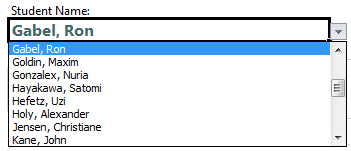
- From the Student Summary workbook, click cell B8 and use the drop-down arrow to select a student’s name. The bar graph will update with that student’s grade data.
- Click the File tab on the ribbon.
- 3. Select the Print tab, and then click the Print button.
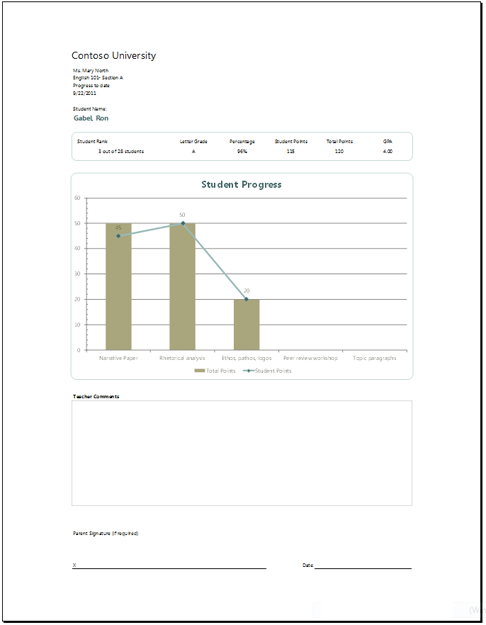
If you want to quickly print a report for every student in your gradebook, open the Student Summary worksheet. In the Student Summary worksheet, click Print All.

I hope this gradebook template saves you time. Have a great 2011- 2012 school year, teachers!
–Jennifer Bost