Do you have Office documents on your website or blog that you want your readers to view even if they don’t have Office installed? Would you rather view a document before downloading it? To give your audience a better experience, try the Office Web Viewer.
What is the Office Web Viewer?
It’s a service that creates Office Web Viewer links. Office Web Viewer links open Word, PowerPoint or Excel files in the browser that would otherwise be downloaded. You can easily turn a download link into an Office Web Viewer link to use in your website or blog (e.g., recipes, photo slide show, a menu, or a budget template).
Some benefits of the Office Web Viewer include:
- You don’t need to convert Office files for the web (e.g., PDF, HTML).
- Anyone can view Office files from your website or blog, even if they don’t have Office.
- It keeps eyes on your website or blog, because readers don’t need to download the file and they stay in the browser.
- One link will work for computers, tablets, and mobile phones.
Microsoft 365
Best-in-class productivity apps with intelligent cloud services that transform the way you work.

How to get started
To use Office Web Viewer, click this link: http://officewebviewer.com
Then copy and paste the document’s URL in the text box. It looks like this:
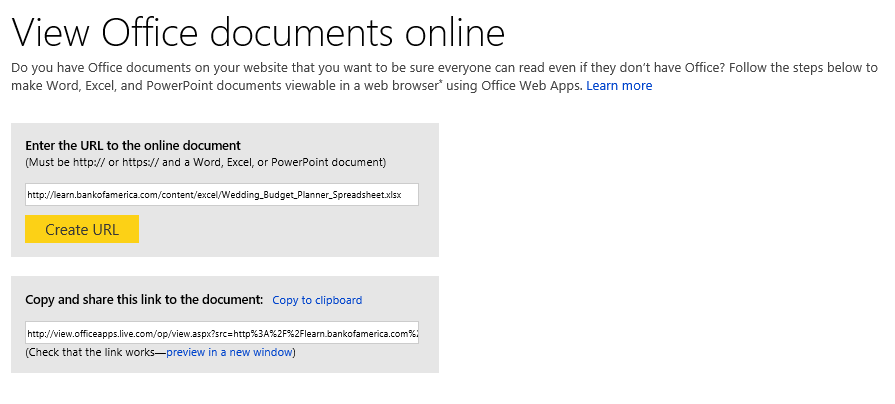
To make the URL yourself, you can use the link below, where <Document Location> is a URL to the document.
http://view.officeapps.live.com/op/view.aspx?src=<Document Location>
Note: the <Document Location> needs to be URL encoded, and the document must be publicly accessible on the internet.
Here are a few examples of documents in the Office Web Viewer:
- At the Microsoft Build conference there were a lot of presentations with PowerPoint decks. If you want to watch a video of one of the presentations, you can also look at the PowerPoint deck that goes with it using the Office Web Viewer. http://view.officeapps.live.com/op/view.aspx?src=http%3a%2f%2fvideo.ch9.ms%2fbuild%2f2011%2fslides%2fTOOL-532T_Sutter.pptx
- Here’s a school newsletter template we found on Bing. With the Office Web Viewer, you don’t have to worry about everyone at the school being able to view a Word document–now all they need is a browser. http://view.officeapps.live.com/op/view.aspx?src=newteach.pbworks.com%2Ff%2Fele%2Bnewsletter.docx
If your document is an Office document and is publicly accessible on the internet, then you are good to go. Office Web Viewer links are a great alternative to download links because your readers don’t need a special program to view your documents, and they don’t have the interruption of leaving their browser.