Today, we’re introducing several updates to Microsoft Forms, including improvements to the Forms portal, more languages and right-to-left reading support.
Microsoft Forms portal improvements
We are introducing significant improvements to the Forms portal page. With the new design, users will see a snapshot of each form, which includes the form title, background image and number of responses. The new search box, on the upper right corner, will help users quickly find a form either by its title or owner’s name.
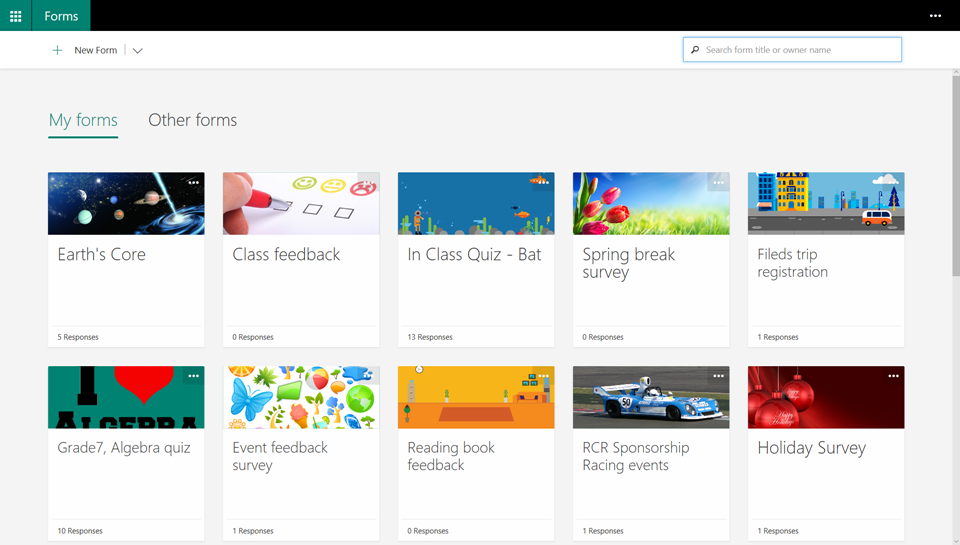
Updated Forms portal page.
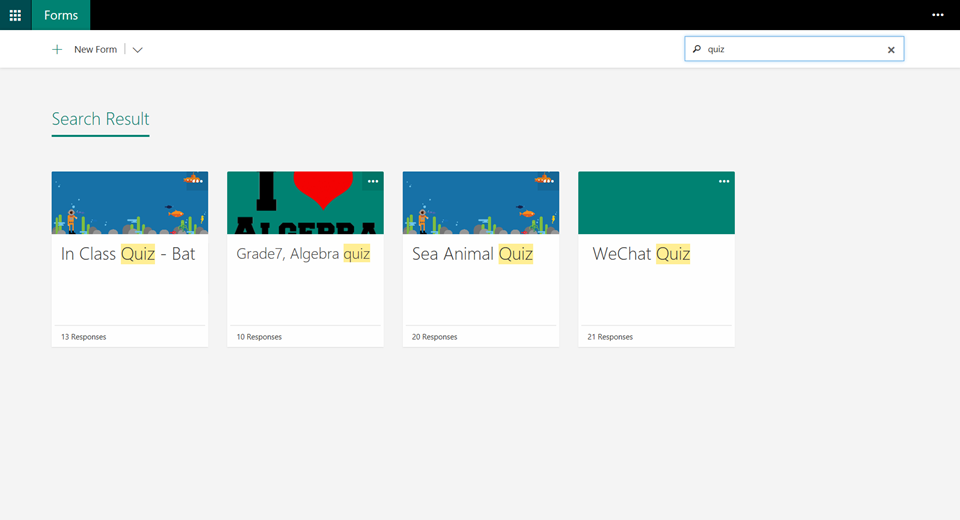
Search in Forms portal page.
More languages and right-to-left reading support
With this update, we’re introducing 26 new languages to Forms—bringing the total to 68 languages. We are also enabling RTL (right-to-left) reading support for Hebrew and Arabic users, so users can create and respond to forms, as well as view forms results.
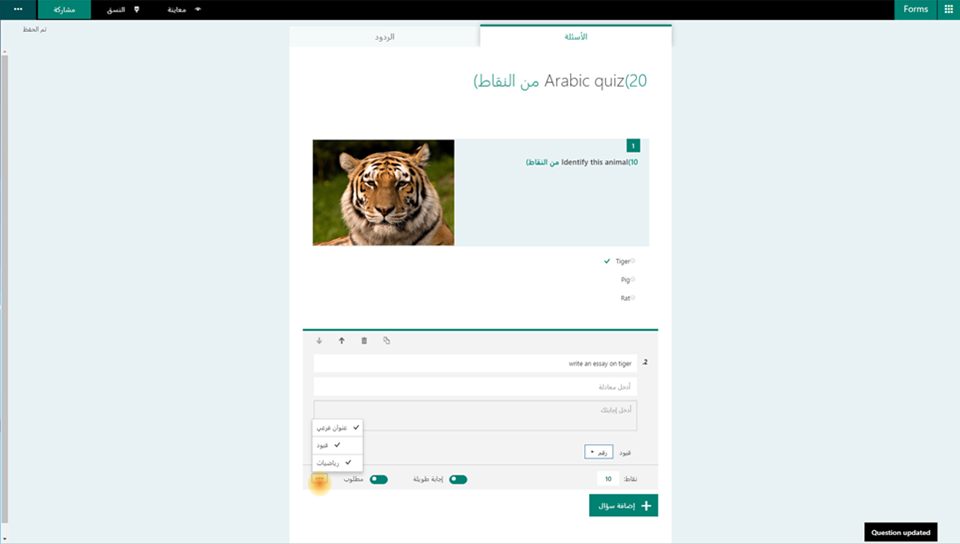
Forms RTL (right-to-left) reading support.
Create your own form or quiz
Educators can easily create a new form or quiz, add questions, customize settings, share their forms and check on the results. Just follow these simple steps:
- Sign in and create a new survey form or quiz form.
- Adjust the settings for the form.
- Share the form with others.
- Check the form results.
Learn more about using Forms
To learn more, see Copy a form, Delete a form, Share a form or quiz as a template and Share a form to collaborate. Many other top tasks and answers can be found on the What is Microsoft Forms? page, and on the Forms FAQs.
We want to hear from you
When teachers talk, we listen. We’re committed to listening to users on how we can keep improving Forms for your everyday use.
—The Forms team